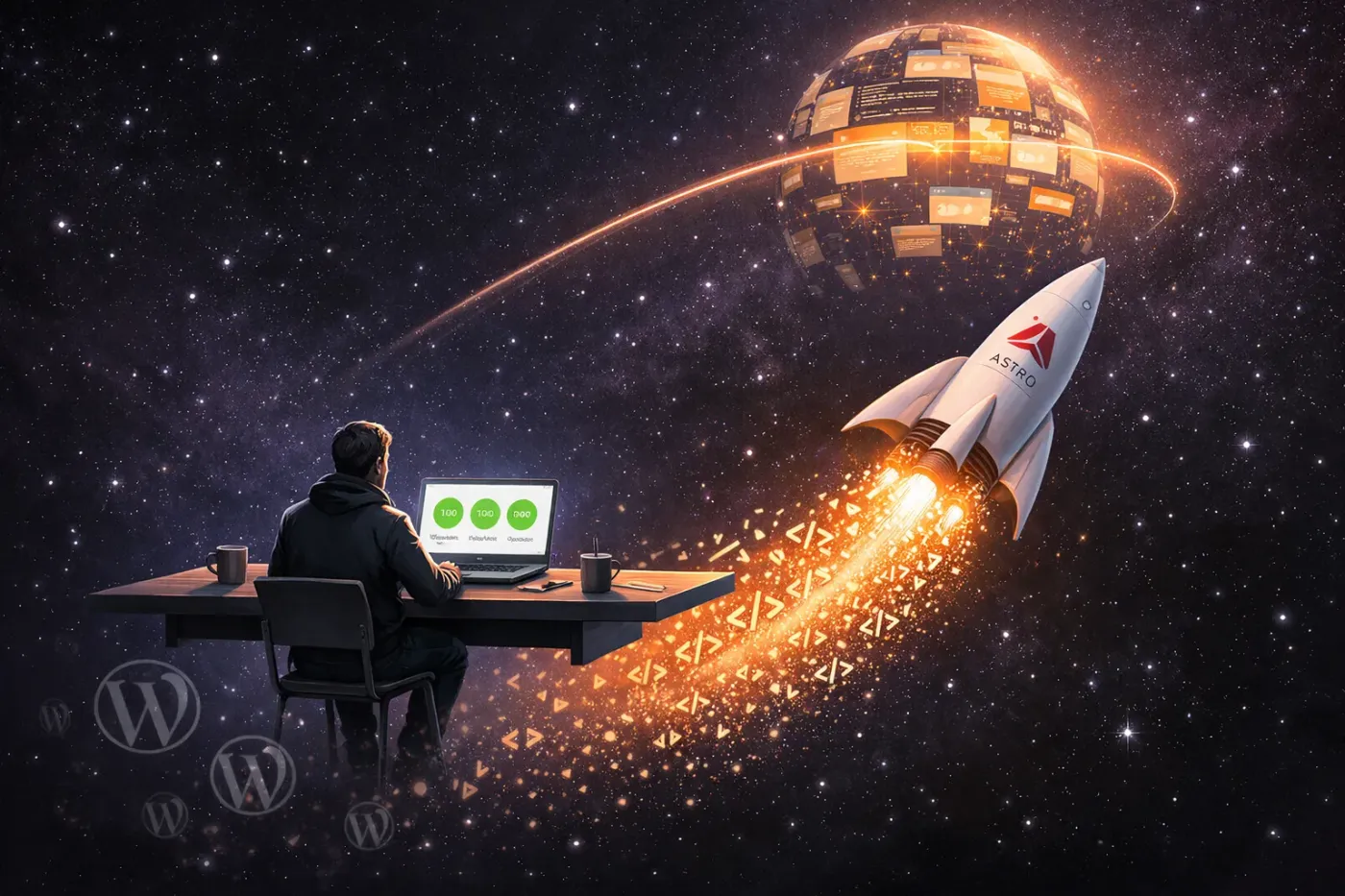
After years of running L1WebTips on WordPress, we made the decision to rebuild our entire site using Astro. This wasn’t a choice we made overnight. It came after months of frustration with slow load times, constant plugin updates, and rising hosting costs. This article shares exactly what we did, why we did it, and what we learned along the way.
Why We Started Looking for Alternatives
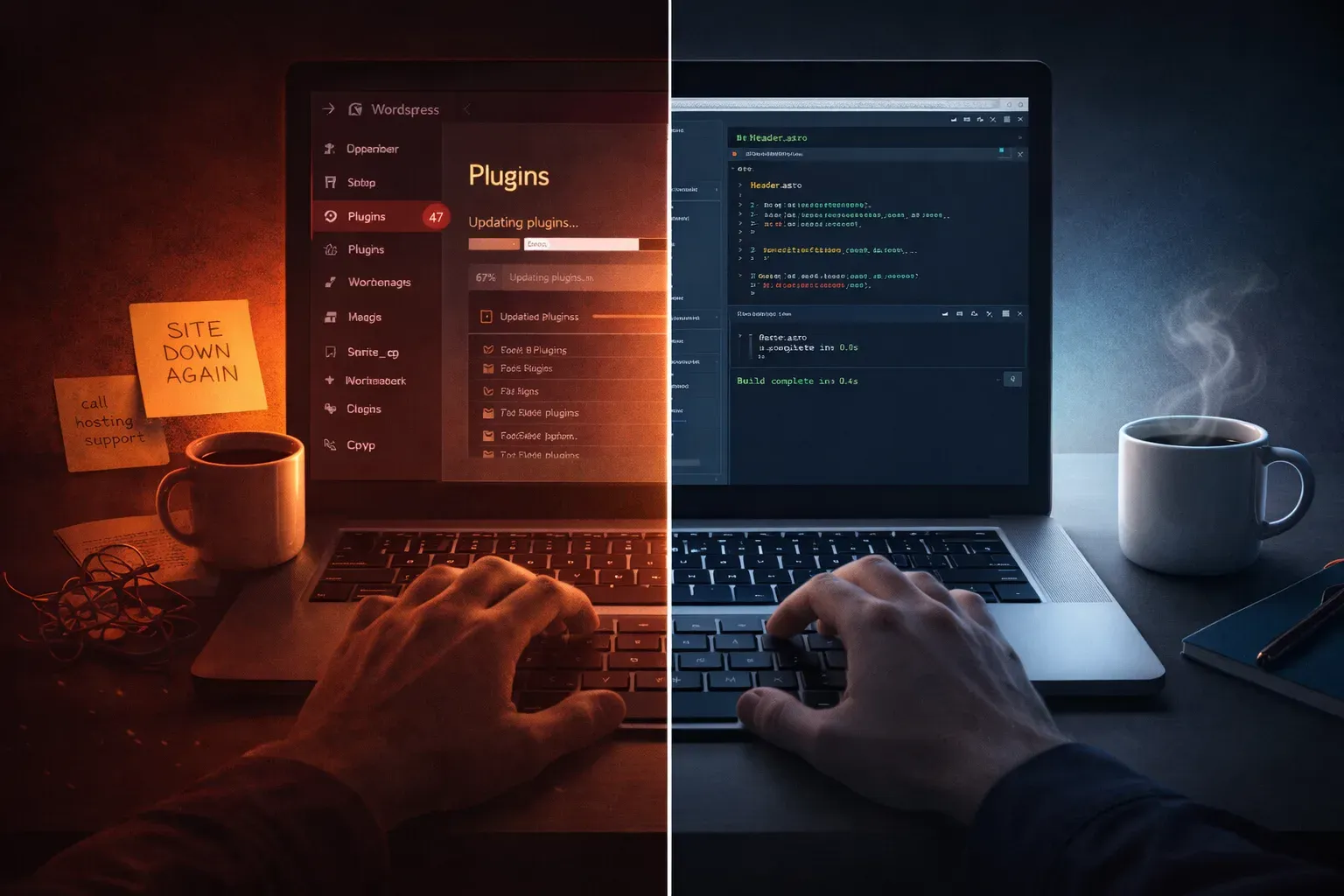
Our WordPress site worked fine at first. But as we added more content, the cracks started showing. Pages took over 3 seconds to load on mobile despite using premium caching plugins. And every month felt like a new security scare, with plugin vulnerabilities requiring immediate patches.
The final straw came when our hosting bill doubled after a traffic spike. WordPress needs PHP running on the server and a database query for every page view. That architecture costs money and slows things down. According to Google’s research, the probability of bounce increases by 32% as page load time goes from 1 second to 3 seconds.
Why We Chose Astro Over Other Options
We looked at several static site generators before landing on Astro. Hugo was blazing fast but had a steep learning curve. Gatsby was popular but shipped too much JavaScript for our taste. Astro stood out because of its “zero JavaScript by default” philosophy.
Astro lets you build with components like React or Vue, but only ships the JavaScript actually needed for interactivity. The rest becomes static HTML. This means search engines see your content immediately without waiting for scripts to load.
Another factor was the migration path. Astro’s official documentation includes a guide specifically for moving from WordPress, which gave us confidence we wouldn’t be starting from scratch.
How We Actually Did the Migration
Our migration happened in four main phases over about six weeks.
Phase 1: Export and Clean Up
We started by exporting all our WordPress content using the built-in WordPress export tool. This created an XML file with every post, page, and image reference. Before converting anything, we took the opportunity to prune old content. We deleted draft posts from 2019, removed outdated service pages, and consolidated similar articles.
Lesson learned the hard way: We initially skipped this step and tried to migrate everything at once. Cleaning content before migration saves hours of troubleshooting broken legacy content later.
Phase 2: Converting Content to Markdown
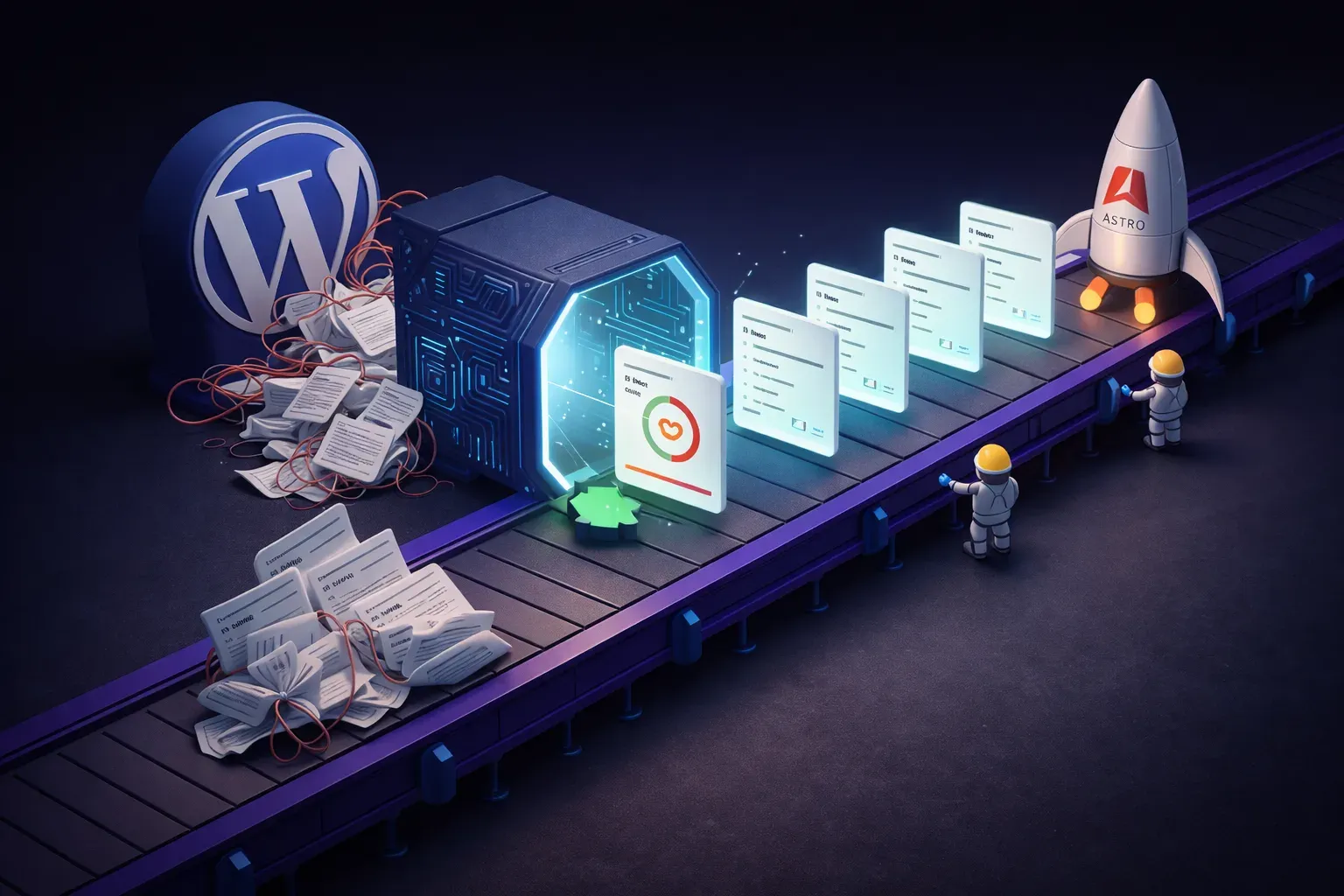
The trickiest part was converting WordPress’s XML format into Markdown files that Astro could use. We used the command-line tool wordpress-export-to-markdown which handles frontmatter formatting automatically. This preserved our post titles, dates, categories, and featured images while stripping out all the WordPress-specific markup.
Each post became a single .md file with YAML frontmatter at the top. Images were moved to an /assets/images/ folder. We had to manually fix some embedded content like videos and interactive elements, but the bulk conversion saved us weeks of work.
Phase 3: Rebuilding the Design
Rather than recreating our old theme, we redesigned from scratch. Astro’s component-based architecture made this surprisingly straightforward. We built reusable components for our navigation, article cards, and newsletter signup. The styling used standard CSS with CSS variables for consistency.
One advantage we didn’t expect: the redesign process forced us to simplify. Our old WordPress theme had bloated over time with features we never used. The Astro version has exactly what we need and nothing more.
Phase 4: Testing and Deployment
Before going live, we ran extensive tests. We checked every internal link, verified image loading, and tested the site on multiple devices using Google PageSpeed Insights. Astro’s build process generates static HTML files, so we could preview the entire site locally exactly as it would appear online.
We deployed to Netlify, which offers free hosting for static sites with automatic SSL certificates. The entire process took one afternoon. When we switched the DNS over, the new site was live within minutes.
The Benefits We Saw Immediately
Performance Improvements
The numbers speak for themselves. Our PageSpeed Insights scores jumped from 86 to 100 on desktop and 72 to 98 on mobile. Page load times dropped from 3.5 seconds to under 0.8 seconds.
Astro’s approach of shipping zero JavaScript by default made the biggest difference. Our WordPress site loaded over 200KB of JavaScript before any content appeared. The Astro version loads less than 5KB for the entire page.
Better SEO
Search engines love static HTML. Googlebot can crawl our entire site instantly without waiting for JavaScript to render — a key ranking factor known as crawl efficiency. Since the migration, we’ve seen a 23% increase in organic search traffic. Our structured data validates perfectly, and we’ve started appearing in more featured snippets.
Security and Peace of Mind
Static sites have no database to hack and no PHP to exploit. We don’t need security plugins, firewalls, or constant updates. The attack surface shrank from hundreds of potential vulnerabilities to essentially zero.
Lower Costs
Our hosting bill dropped from £45 per month to £0. Netlify’s free tier handles our traffic easily. We only pay for the domain name now. Even if we outgrow the free tier, static hosting costs a fraction of WordPress hosting.
The Downsides and Challenges
Not everything was smooth sailing. Here are the honest negatives we encountered.
Learning Curve for Content Updates
Our team was used to the WordPress visual editor. Moving to Markdown files required training. Non-technical team members initially struggled with Git workflows and frontmatter syntax. We solved this by setting up Decap CMS (formerly Netlify CMS), which provides a familiar editing interface while still outputting Markdown.
No Built-In Comments
WordPress has native comments. Astro doesn’t. We had to choose between removing comments entirely or using a third-party service like Disqus or Giscus. We opted for Giscus, which uses GitHub Discussions and is free, but setup took time.
Plugin Functionality Had to Be Rebuilt
All those WordPress plugins we relied on? We had to replace them with custom code or alternative services. Contact forms became Netlify Forms. SEO metadata became manual frontmatter. Social sharing became custom components. None of this was impossible, but it took effort.
Initial Time Investment
The migration took six weeks of focused work. For a busy small business, that’s a significant time investment. We had to pause some content creation to focus on the rebuild. In hindsight, the payoff was worth it, but during the process, it felt overwhelming.
Lessons We Learned
Start with a Brutal Content Audit
We saved time by aggressively pruning content before migration. Every post you delete is one you don’t have to convert, test, or maintain. Be ruthless. If a post hasn’t gotten traffic in two years, consider whether it’s worth keeping.
Our recommendation: Use Google Analytics to identify your top-performing content. Anything below 50 pageviews in the last year is a candidate for deletion or consolidation.
Test Everything Locally Before Going Live
Astro’s build process lets you preview your entire site exactly as it will appear in production. Take advantage of this. We caught broken links, missing images, and formatting issues before going live. It’s much easier to fix problems when you’re not affecting live visitors.
Don’t Recreate, Reimagine
Our biggest mistake was initially trying to replicate our WordPress site exactly. We wasted time trying to match features we didn’t actually need. Once we embraced Astro’s different approach, the process accelerated. Static sites work best when you embrace their simplicity rather than fighting against it.
Keep Your Old Site as Backup
For the first month after migration, we kept our WordPress installation active in a subdirectory. This gave us a safety net if something went wrong. It also let us reference old content or settings we had forgotten to migrate. After 30 days of smooth operation, we deleted the WordPress files and closed that hosting account.
Should You Make the Switch?
If you’re happy with WordPress and your site performs well, there’s no urgent reason to migrate. WordPress remains excellent for complex sites needing dynamic functionality, user accounts, or e-commerce — particularly for WooCommerce stores.
However, if you run a content-focused site like a blog, documentation site, or marketing site, Astro offers compelling advantages. The performance gains, security benefits, and cost savings are real. Just budget sufficient time for the transition and expect a learning curve.
For a deeper comparison, CloudCannon has an excellent Astro vs WordPress guide that covers additional technical considerations.
Final Thoughts
Moving L1WebTips from WordPress to Astro was one of the best technical decisions we’ve made. Our site is faster, more secure, and cheaper to run. The migration required effort and patience, but the result is a foundation we can build on for years.
If you’re considering a similar move, start small. Pick a single section or subdomain to migrate first. Learn the workflow, test thoroughly, then expand. The static site approach isn’t for everyone, but for content publishers, it’s a game-changer.