
Shortcuts You Should
Actually
Know
Stop using your mouse like it’s 1998. Reclaim your dignity, one keystroke at a time.
Reading time: 5 mins · Productivity gains: immeasurable · Smugness level: dangerously high
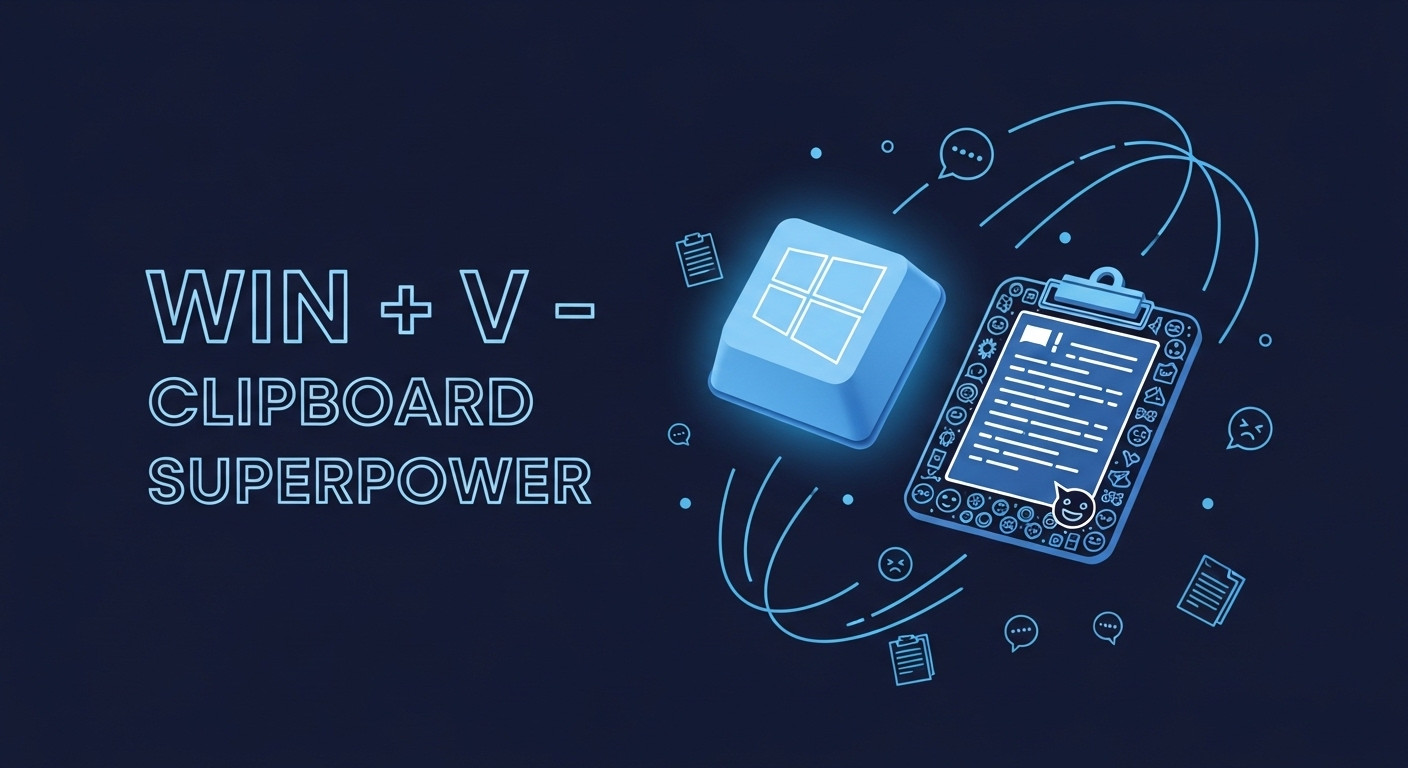
Your Second Brain (That Actually Works)
Because your real brain forgot that password three copies ago.
Every time you copy something new, the old thing vanishes into the void. Gone. Poof. Like your motivation on a Monday morning. Windows has been watching you suffer in silence for years — and the whole time, it had the fix.
This opens your clipboard history — a magical drawer that remembers everything you’ve copied: text, images, that random emoji you found once. It’s all there, quietly waiting for you to stop being a caveman.
📍 Real-World Scenario
You’re writing an email. You need a phone number, a company name, and a quote. Old you: copy, paste, switch, copy, paste, switch, stare into the abyss. New you: copy everything once, hit Win + V, pick what you need from a dropdown. You’re basically a wizard now.
⚠️ First time? You need to enable it: Settings → System → Clipboard → Toggle “Clipboard history” on. Do it now. We’ll wait.
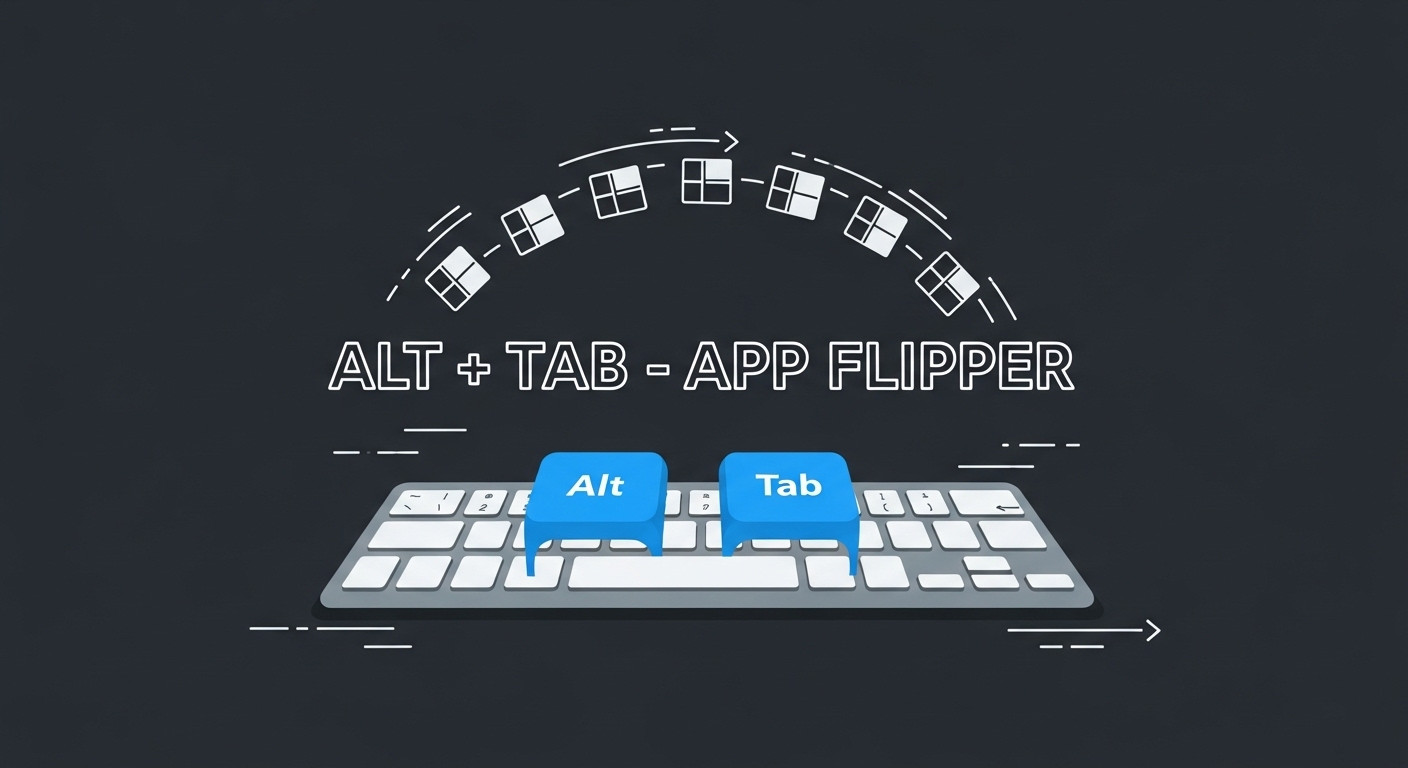
The Dating Show for Apps
Swipe through your open windows. Pick the one that sparks joy.
If you only learn one shortcut from this entire article, tattoo this one on the inside of your eyelids. It’s the granddaddy of productivity — so simple, so elegant, so blindingly obvious that admitting you didn’t know it should come with a support group.
Hold Alt. Tap Tab. Watch your open applications parade across the screen like contestants on Love Island. Release when you find the one you fancy. It’s that simple.
📍 Real-World Scenario
You’re referencing three browser tabs, two spreadsheets, and a Slack chat you should’ve replied to an hour ago. Instead of fishing through your taskbar like you’re panning for gold in a skip, you Alt+Tab your way to glory. Colleagues assume you’re some kind of hacker.
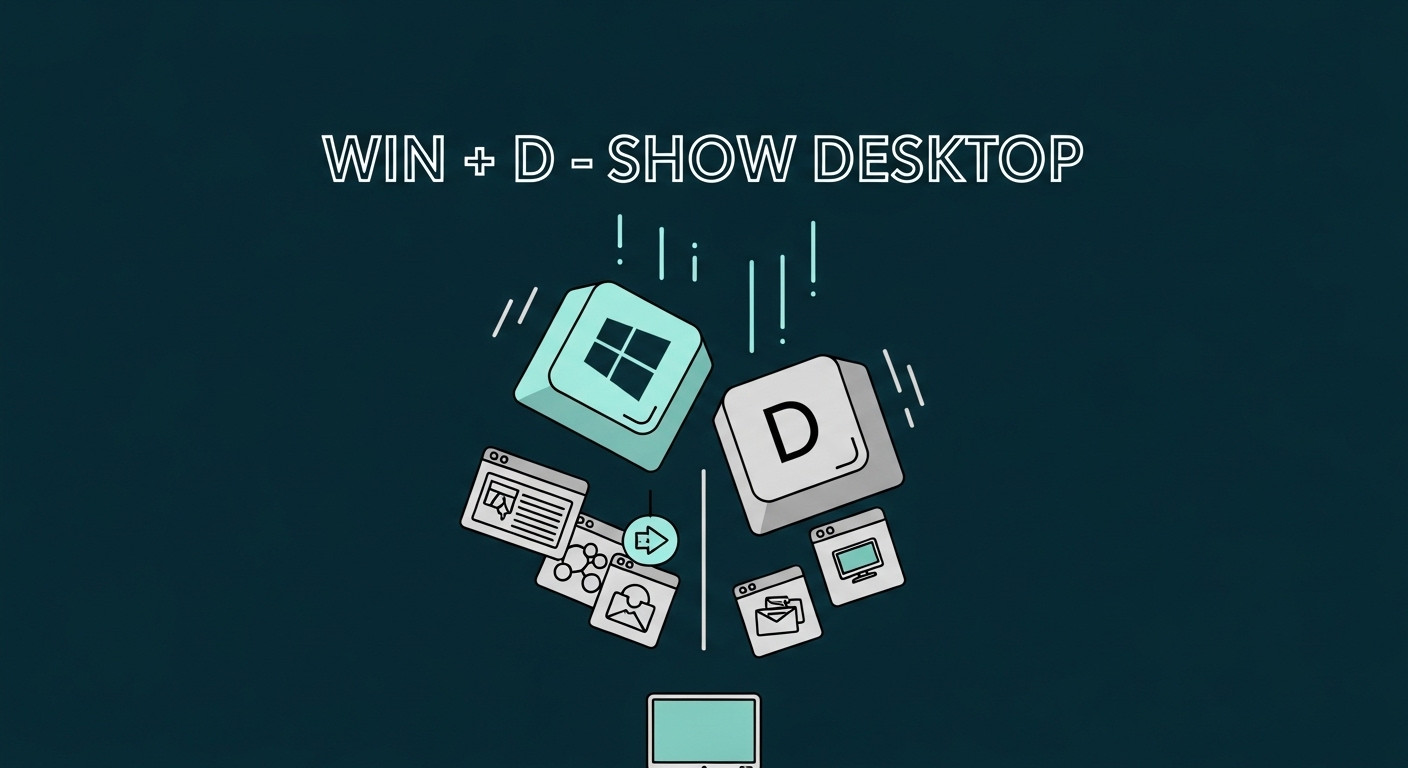
The Boss Is Coming
One keystroke between you and unemployment.
Every office worker needs a panic button. This is yours. It minimises every single window instantly — like pulling the blanket over your head, except it actually works. Press it again and everything pops back exactly where it was. Digital witness protection.
📍 Real-World Scenario
Your manager materialises behind you like a middle-management Voldemort. You’re seven tabs deep into “do fish get thirsty.” One keystroke. Desktop. Serenity. You look like you’re contemplating quarterly targets. They leave impressed. You go back to the fish article.
Screenshot Like You Mean It
Print Screen → Paint → Crop → Save? That’s not a workflow. That’s a cry for help.
If you’ve been hitting Print Screen, opening Paint, pasting, cropping, and saving like some kind of digital archaeologist — stop. There’s a better way and it’s been staring at you from the keyboard.
This opens the Snipping Tool overlay. Your screen dims. Drag a box around whatever you want — an error message, a chart, a suspicious tweet. It copies straight to clipboard. Paste anywhere. No Paint involved.
📍 Real-World Scenario
Your aunt sends a photo of her screen taken with her phone — at an angle, with flash on, thumb visible. You Win+Shift+S the exact spot, annotate it, and paste into WhatsApp. She still calls you instead.
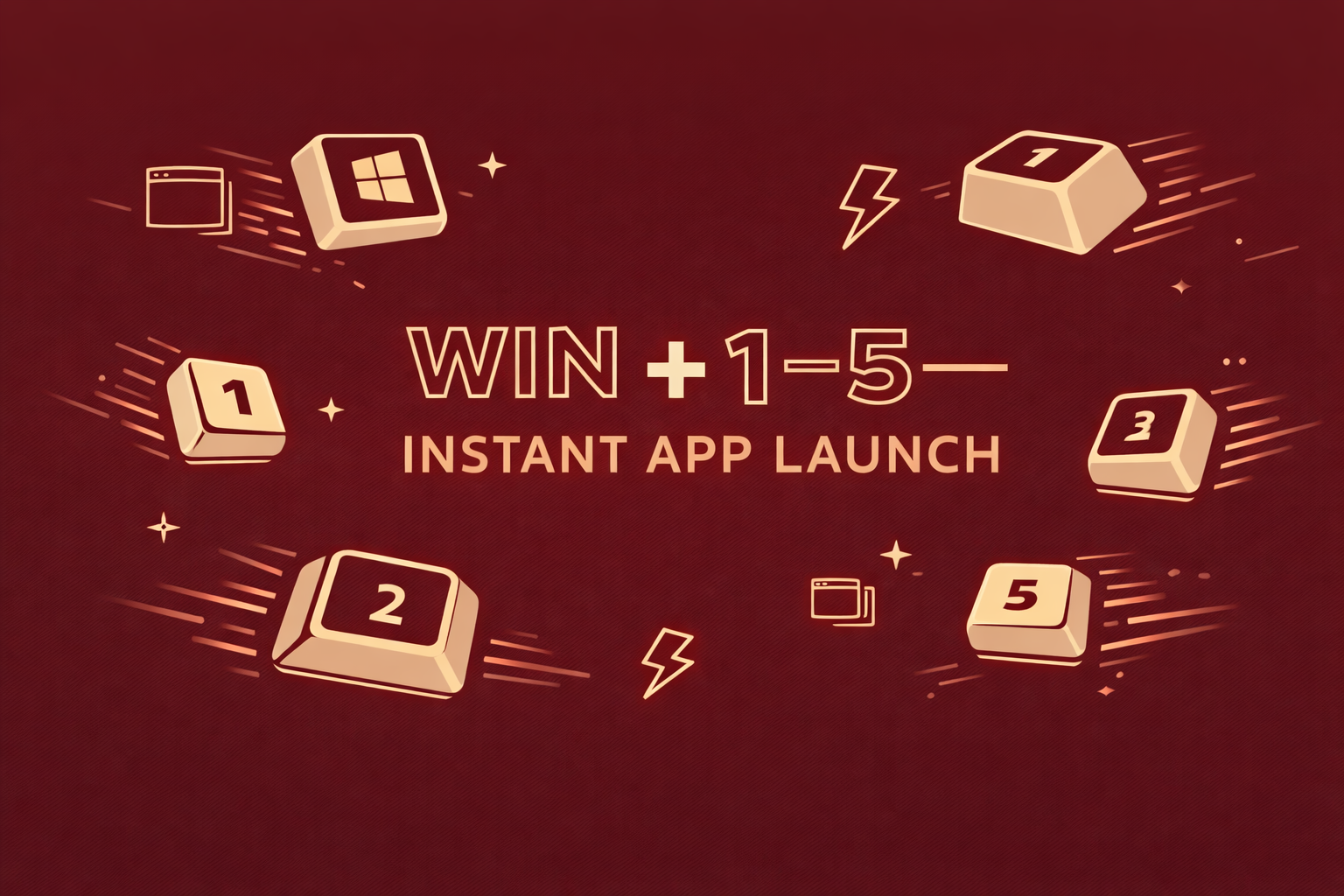
Taskbar Teleportation
Launch apps by number. Feel like you’re in The Matrix.
This makes you look like you know what you’re doing even when you categorically do not. Pin your most-used apps to the taskbar. Win+1 opens the first, Win+2 the second. With muscle memory, it’s essentially witchcraft.
📍 Real-World Scenario
Someone asks you to pull up a spreadsheet in a meeting. You press Win+3. It appears instantly. Brief, respectful silence. You have become the IT person by accident. There is no going back.
The After-Party
Ten more shortcuts. No images. Pure, uncut keyboard knowledge.
The Emoji Drawer 🤌
Opens the emoji picker. Because sometimes a Slack message needs a 🤷♂️ more than words.
Lock Screen 🔒
Walking away? Hit this so coworkers can’t change your wallpaper to Nicolas Cage. Again.
File Explorer 📁
Opens “My Computer” instantly. Beats clicking through four nested folders like an archaeological dig.
Tab Necromancy 💀
Closed a tab? This brings it back from the dead. Works multiple times. Unlimited resurrections.
Window Snap 📐
Snaps window to the left half. Perfect for pretending to multitask during video calls.
Task Manager 🔧
Goes straight to the part where you force-quit Excel. No Ctrl+Alt+Del detour.
The Secret Menu 🕵️
Hidden power menu with all the admin tools you’re afraid to touch. The speakeasy of Windows.
Instant Rename ✏️
Select a file, hit F2. Stop right-clicking like a peasant.
Word Eraser 💣
Deletes the previous word. Essential for angry typists and people who misspell “definitely” every time.
Nuclear Minimise ☢️
Minimises everything. For when you just want it all to go away. Win+D’s more dramatic sibling.
📋 TL;DR Cheat Sheet
Print this. Stick it on your monitor. Become unstoppable.
| Shortcut | What It Does | Vibe |
|---|---|---|
| Win + V | Clipboard history | 🧠 |
| Alt + Tab | Switch apps | 🏆 |
| Win + D | Show/hide desktop | 🚨 |
| Win + Shift + S | Snipping tool | 📸 |
| Win + 1…9 | Launch taskbar apps | ⚡ |
| Win + . | Emoji picker | 🤌 |
| Win + L | Lock screen | 🔒 |
| Win + E | File Explorer | 📁 |
| Ctrl + Shift + T | Reopen closed tab | 💀 |
| Win + ← | Snap window left | 📐 |
| Ctrl+Shift+Esc | Task Manager | 🔧 |
| Win + X | Power menu | 🕵️ |
| F2 | Rename file | ✏️ |
| Ctrl + Backspace | Delete previous word | 💣 |
| Win + M | Minimise all | ☢️ |
Now go forth and never touch your mouse again. (Well, maybe sometimes.)
Made with ⌨️ by L1 Web Tips • 2026